iPhone / iPad
Go to the App Store to purchase or redownload. System requirements are as listed on the App Store page. On an older device, check Compatibility on the product page before proceeding with the purchase.
Get Shadowrocket for iPhone and iPad from the App Store. For other devices, check the release channel and system architecture before deciding whether an installer is compatible.
Check the App Store product page for compatibility, price, and the current version.
Check your device first, then verify the source. The processor architecture helps determine whether a file can run on your device; a matching file extension and architecture do not prove that the installer was released by the app developer.
Go to the App Store to purchase or redownload. System requirements are as listed on the App Store page. On an older device, check Compatibility on the product page before proceeding with the purchase.
Open About This Mac from the Apple menu, and check both your macOS version and the Chip or Processor field. Apple silicon and Intel models may require different installers. If the release channel does not clearly list your model and system requirements, do not rely on the filename to determine compatibility.
Go to Settings → System → About to check your system type and distinguish x64 from ARM64. Both may be listed as 64-bit, but they use different processor architectures. Check the publisher’s stated support range to determine whether an installer is compatible; do not rely on its file extension.
Check your device model, system version, and processor architecture. An installer labeled arm64 only indicates its stated target architecture; it does not verify the app’s identity. If your browser or messaging app prompts you to install it, return to the page and verify its source before granting installation permission.
Check your distribution and processor architecture first, then confirm that the publisher provides a compatible package format. Debian and Ubuntu commonly use .deb; Fedora and openSUSE commonly use .rpm. Check the architecture and runtime requirements separately for AppImage. A package being recognized by your system does not mean it is suitable for your distribution.
Cancel the current operation and keep a copy of the exact system message. Then verify the download source. An incomplete download, an incompatible system, a device management restriction, and an unverified publisher are different issues. A single installation error does not tell you which system setting to change.
| Platform | Message or issue | What to check and do |
|---|---|---|
| Windows | Microsoft Defender SmartScreen says, “Windows protected your PC.” | Close the warning first. Check the download URL and the digital signature in the file properties. Make sure the signature is valid and the signer matches the publisher. If you cannot verify this, do not run the file. Contact your administrator if this is a work device. |
| macOS | The system cannot verify the developer, or says the app is damaged and can’t be opened. | Stop trying to open the app and check your device architecture and system requirements. If the app is reported as damaged, get the file again from a verified release channel. If the warning appears again, send the exact message to the publisher for verification. |
| Android | The system says the current source is not allowed to install apps, or displays a security warning during installation. | Cancel the installation and check which app started it and where the file came from. Do not enable installation permissions for chat attachments or websites with unverified sources. Follow your organization’s policy on managed devices. |
| Linux | The package manager reports an architecture, dependency, or signature issue, or AppImage won’t run. | Run uname -m in a terminal to check your device architecture, then compare it with the release notes. Do not bypass signature errors. For dependency errors, check your distribution and its dependency requirements first. |
App Store & Account
Check the product page before installing for the first time. If you’ve already purchased the app, go straight to the restore steps.
If Shadowrocket doesn’t appear in App Store search, open the product link on this page first. This helps distinguish a missing search result from an app that isn’t available in your current storefront. The App Store shows the country or region of the Apple Account used for Media & Purchases. Changing your device language or opening a US storefront link in a browser does not change the storefront for that purchasing account.
If the product page says the app isn’t available in your current region, check which purchasing account you’re using. Don’t treat another search result with a similar name as a substitute. If you’ve purchased the app before, check your original account’s purchase history before starting a new purchase.
id932747118. Search results may show similar names, so check the number in the URL before reviewing the page.After installation, compare the app with the two App Store screenshots below. Home is where you check connection status, with Global Routing and Connectivity Test. If you already have your own server details, open Add Server to see the fields. Screens may vary by version or device. These images help identify the interface; they do not verify an installer’s source.
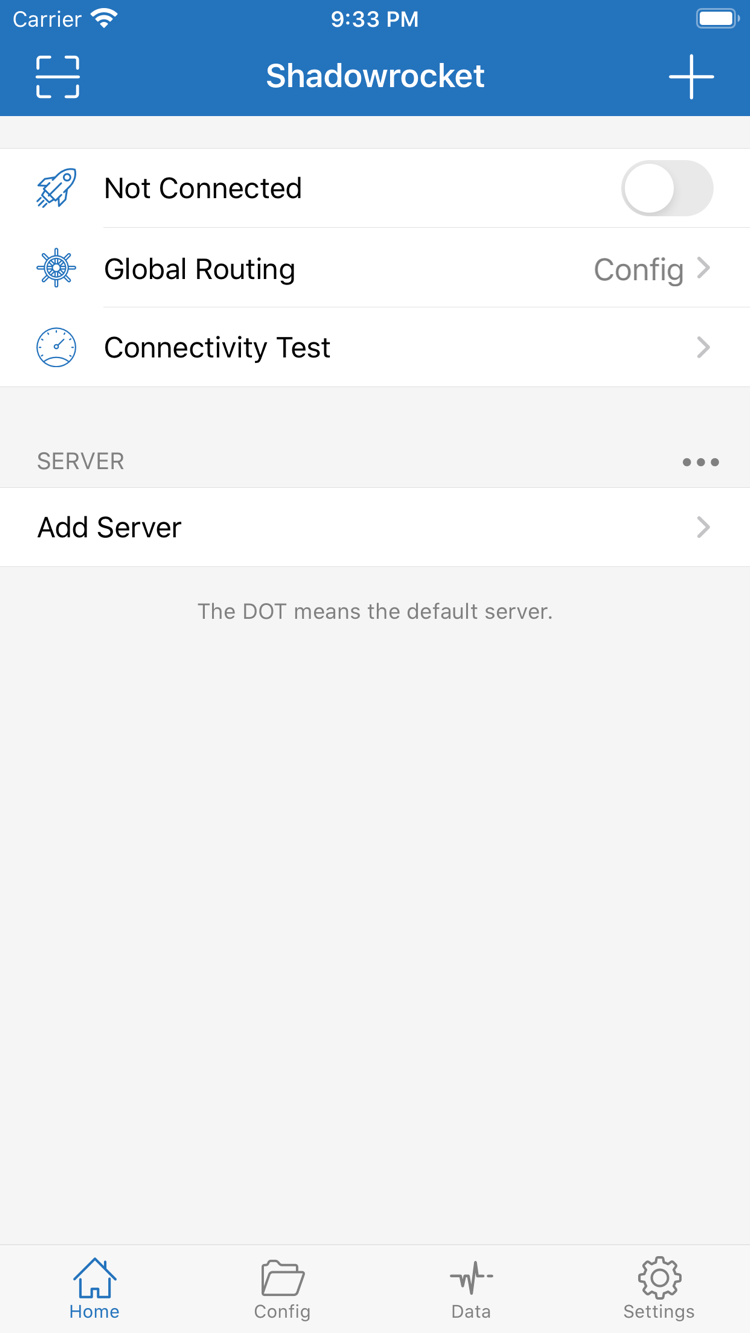
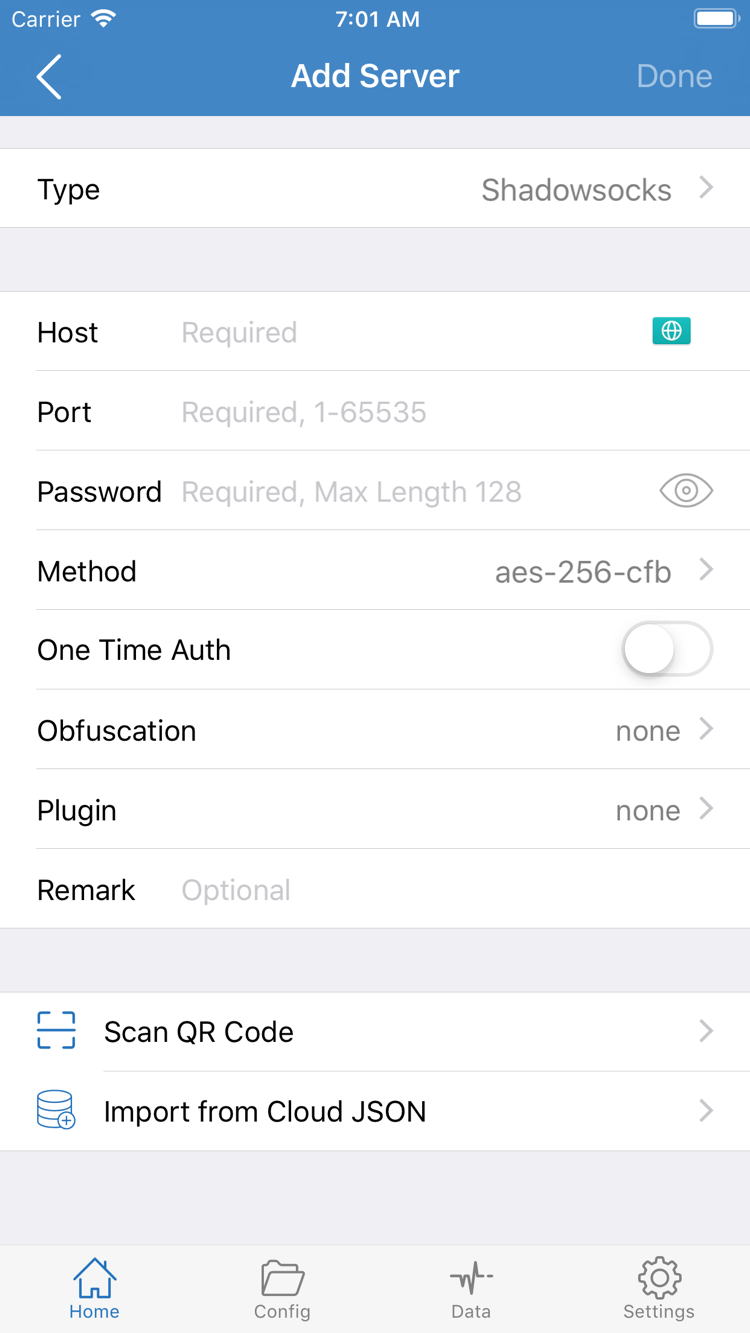
If you purchased Shadowrocket on an iPhone or iPad, first make sure the new device uses the original purchasing account for Media & Purchases. Open the App Store, tap your profile picture, and find Shadowrocket under Purchased or your purchase history. If the app is still available for your storefront and device, tap the redownload icon to get it again without paying a second time.
If you see a price button instead of the redownload icon, stop there. Check the account, storefront, and app ID in that order, then confirm that your original purchase is visible. Being signed in to an account for photo or backup syncing does not mean the App Store is using the same purchasing account.
Restoring the app and restoring connection settings are two separate tasks. After installation on your new device, check Home to see whether your existing configuration is there. If anything is missing, reimport it from your own backup, subscription, or server details. Don’t share screenshots containing private addresses, passwords, or subscription details. See the setup guide for importing and connecting for the first time.
The iPhone and iPad version is a one-time $2.99 purchase in the US App Store. Check your local storefront for its price and currency. The Mac, Windows, Android, and Linux versions are free.
Buying the app does not buy a service plan. Your purchase covers the app, not a subscription URL, server account, or access to a service. This site does not provide, sell, or recommend nodes or subscriptions. If you already have your own subscription or server details, see the server management guide to choose Subscribe or Add Server.
If the server list is empty after installation, check whether you’ve imported your details before considering another app purchase. If an existing subscription fails to parse after import, compare it with the original link to make sure it was copied in full. Then contact your own service provider if you need to check the link’s status.