Shadowrocket Setup Guide
Using the iPhone / iPad interface as an example: add a server in Home, choose a routing mode, connect, and verify the result with an actual request.
Add Server and Subscribe: Add a server or import a subscription
Open Shadowrocket, go to Home, and find the SERVER group. First identify which details you have: an individual server's address, port, and authentication details are used with Add Server; a subscription link from your service provider is used with Subscribe. Choose either method. Even if a subscription link starts with https://, it is not a server address to enter as Host.
Add a server manually
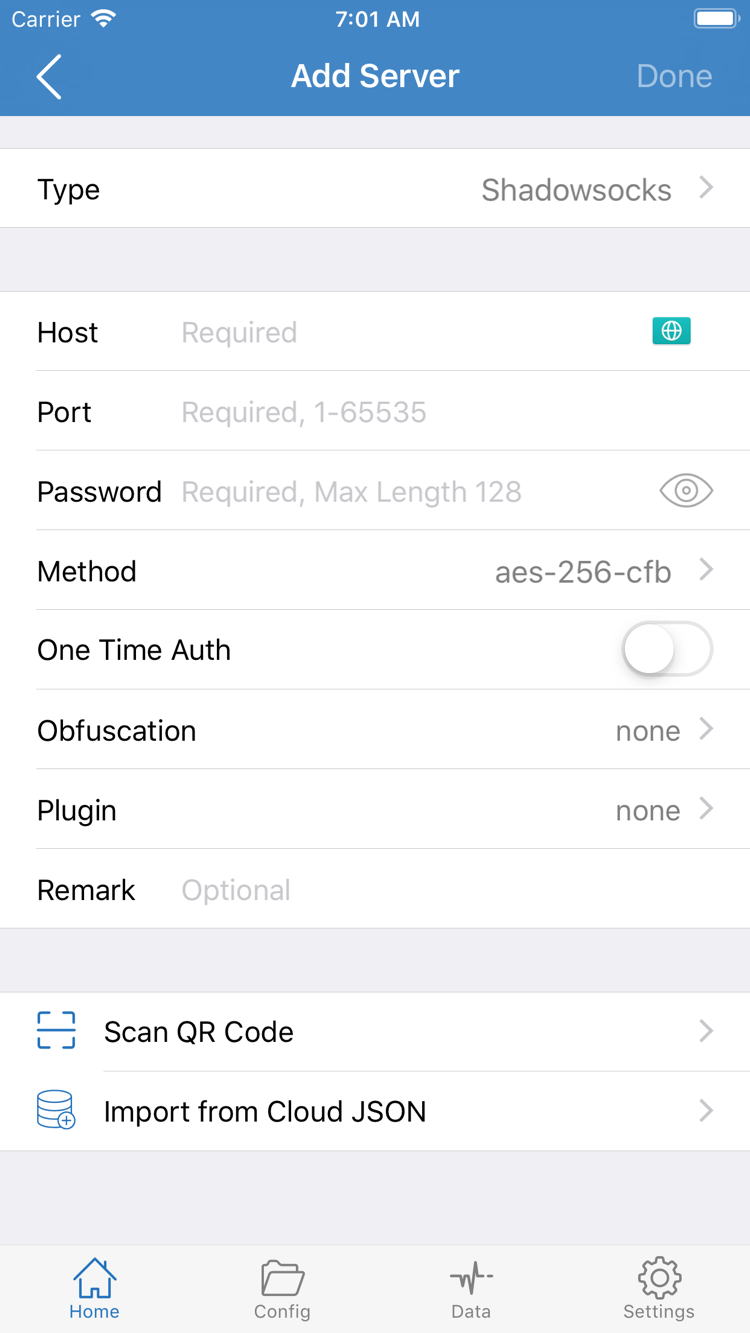
Open Add Server from Home, choose the protocol that matches your details under Type, then enter Host and Port. Choose the protocol first because the fields that follow depend on it. For example, when using Shadowsocks, enter the Password from your details and select the matching Method. For other protocols, compare each field shown in the current interface with your details; do not use parameters for a different protocol.
For Host, enter only the server's domain name or IP address, without a web page path. Enter Port in its own field. Preserve the capitalization in passwords, and check for accidental spaces or line breaks at either end after pasting. If you have a QR code for a single server, use Scan QR Code in Add Server, then confirm Type, Host, and Port after scanning. You do not need to enter a separate set of details for scanning.
Import an existing subscription
Open the add menu from Home, choose Subscribe under Type, paste the complete subscription link into the address field, and save. Keep the full link, including the question mark and any parameters that follow it. Copying only the domain or omitting the last part of a long link may let you save the subscription but prevent the server list from loading. Subscription links often contain access credentials; do not post them publicly or paste them into online testing tools.
After saving, return to Home and expand the relevant SERVER group. For a manually added server, find the entry you just saved. For an imported subscription, confirm the group contains selectable entries, not just a group heading. If the list is empty, first check the import source as described in Step 05. Once at least one server is available, choose how to route traffic.
Global Routing: Choose Config, Proxy, or Direct
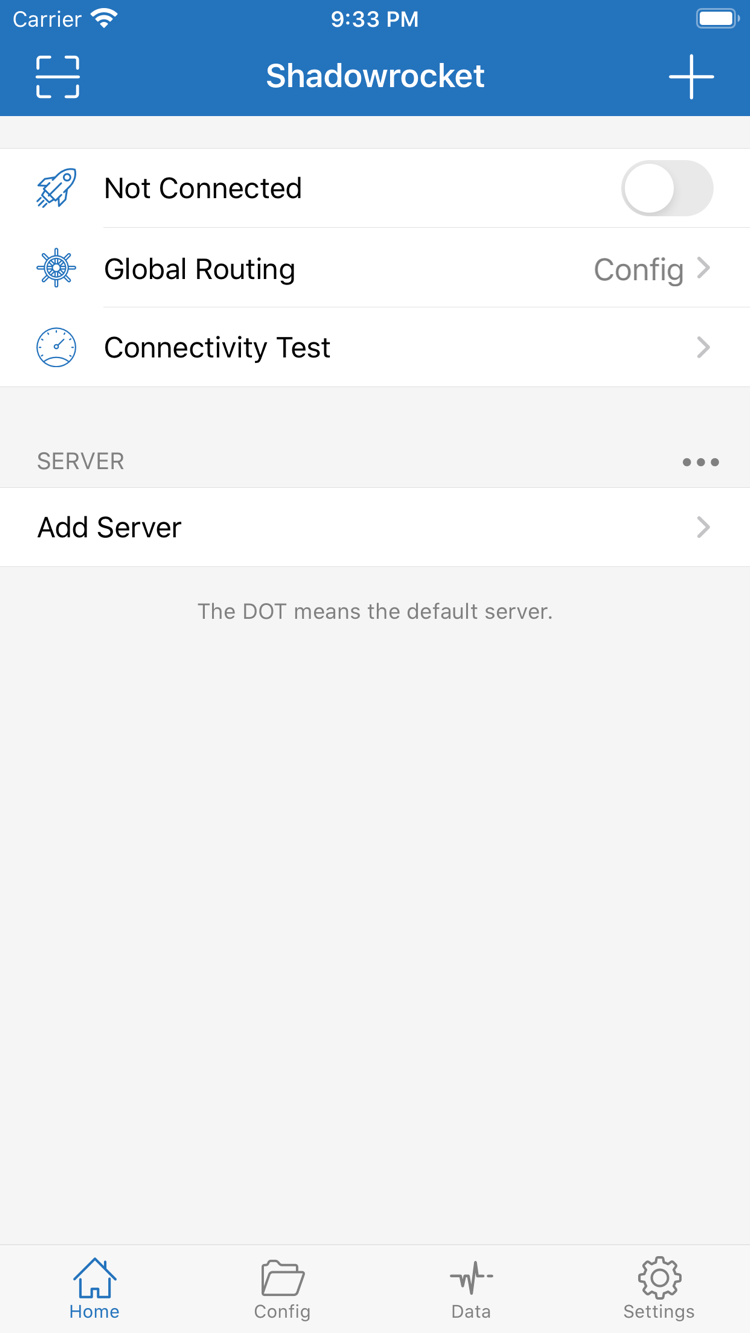
Return to Home and open Global Routing. This setting determines how requests are routed after you connect; it does not import a server or replace the selected server. Start by understanding these three modes. After making a choice, return to Home and check that the value shown beside Global Routing matches your selection.
- Config: Route traffic according to the rules in the active configuration. A request may use PROXY, use DIRECT, or be REJECTed by a rule. Choose this mode when you have a suitable configuration and want different destinations to use different routes.
- Proxy: Route traffic handled by the client through the proxy. If a destination will not open under rule-based routing, temporarily switch to this mode for comparison. This can show whether the selected server can reach the same destination without the original rule selection.
- Direct: Route traffic handled by the client directly, without using the selected proxy server. Use this to check whether your current network can access a destination directly. This is separate from turning off the switch at the top; record these as two different test conditions.
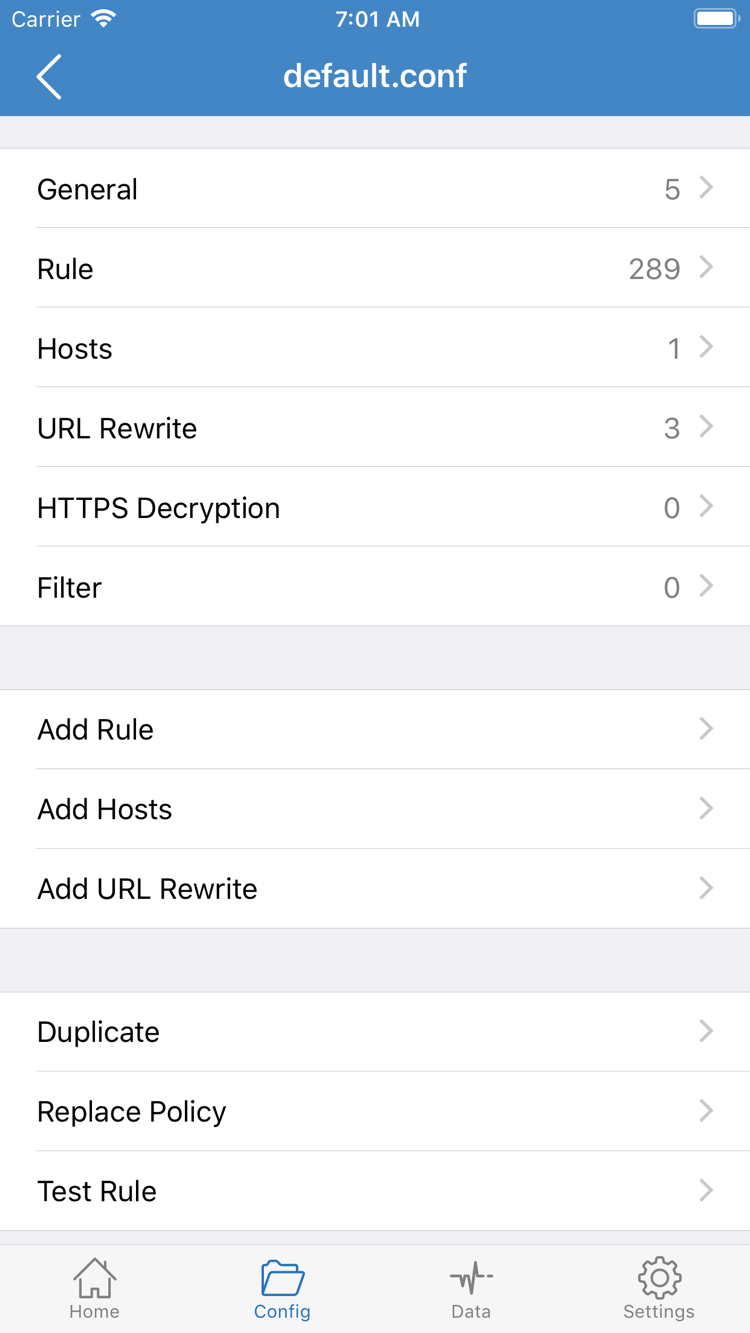
Before using Config, open Config from the bottom menu and check which configuration is active in the list, then open that file's editor and review Rule. Config here is the page for managing configuration files; Config on Home is one of the Global Routing options. Opening a file to browse it does not switch the routing mode, and changing the mode does not automatically select the file you just viewed.
To check a rule, find one whose target domain and expected action you know, and see whether an earlier entry could match the same destination first. For example, DOMAIN-SUFFIX,example.com,PROXY in a configuration means that domains with this suffix use PROXY. If no earlier rule matches, check how FINAL is handled in the configuration. Review first; there is no need to modify the file with Add Rule just to make the first connection. If you are unsure which rule you changed, it will be harder to reproduce the result with the same configuration.
After confirming the mode, return to Home. Keep the configuration unchanged, then select a server and connect in the next step. This makes it easier to tell whether a problem is due to a connection that has not been established or a route selected by a rule after connecting.
Home: Select a server and connect
Under SERVER on Home, find the entry you added manually or expand the subscription group you just imported. Select the server you want to test and confirm that it is selected. If several entries have similar names, find the right one by its group rather than relying on the name alone. Check Global Routing again to make sure the mode from the previous step is still selected.
When the top of the screen shows Not Connected, tap the switch beside it. If the system asks to add a VPN configuration the first time you connect, confirm that the request was initiated by Shadowrocket, then follow the iPhone / iPad system prompts. If you previously canceled permission, the switch may not stay on. Resolve the system prompt first; there is no need to reimport an existing server.
After granting permission, return to Home and wait for the status at the top to settle. When the switch stays on and Not Connected is no longer displayed, proceed to verification. This confirms only that the connection is enabled on your device; it does not prove that the server is reachable or that a particular page used the proxy according to the rules. The VPN indicator in the system status bar is also not a reliable way to determine whether a rule matched.
If Not Connected remains at the top or the switch turns off immediately, note any message on screen. Check that system permission was granted, that the device has a working network connection, and that another VPN connection is not occupying the system connection. If the device is managed by an organization or school and the system does not allow VPN configurations, follow the device management requirements. Do not clear all existing configurations or subscriptions just to retry the connection.
For the first test, stay on the same Wi-Fi or cellular network and keep the current server selected. Changing networks may affect reachability, while selecting another server changes the remote conditions. If both change at once, it is difficult to determine which one affected the result, even if access is restored. Keep the current conditions and compare the test result with actual access in the next step.
Connectivity Test: Check the test, then verify actual access
Keep the connection on and tap Connectivity Test on Home. Note the result for the selected server and which network you are using. The result reflects the response under the network and test method used at that time; it is not the same as actual page loading speed. A successful test does not prove that every destination is accessible, and a failed test should be assessed alongside actual access and Test Method in Settings.
Next, open a browser and visit one destination expected to use DIRECT and another expected to use PROXY according to your configuration. Use pages you have not already opened if possible, so cached content is not mistaken for a new response. For a page that redirects, note the final domain shown in the address bar. If the final address differs from the initial one, a rule inferred from the initial domain may not have handled the last request.
If only one destination fails, keep the network and server the same, temporarily switch Global Routing from Config to Proxy, and revisit the same address. If Proxy works but Config does not, first check the active file in Config, the actual request domain, and the first matching rule instead of immediately changing servers. If both modes fail, switch to Direct for comparison: if direct access works but proxy access fails, check the current server or its connection to that destination first. If all modes fail, check the local network and whether the destination itself is available.
If you need to confirm the route, check your own server-side records or use available connection diagnostics. Do not conclude that a proxy was used just because a page opened. In particular, if a site is reachable both directly and through a proxy, opening it successfully in both cases does not distinguish the route. Without records to verify it, limit the conclusion to “accessible in this mode.”
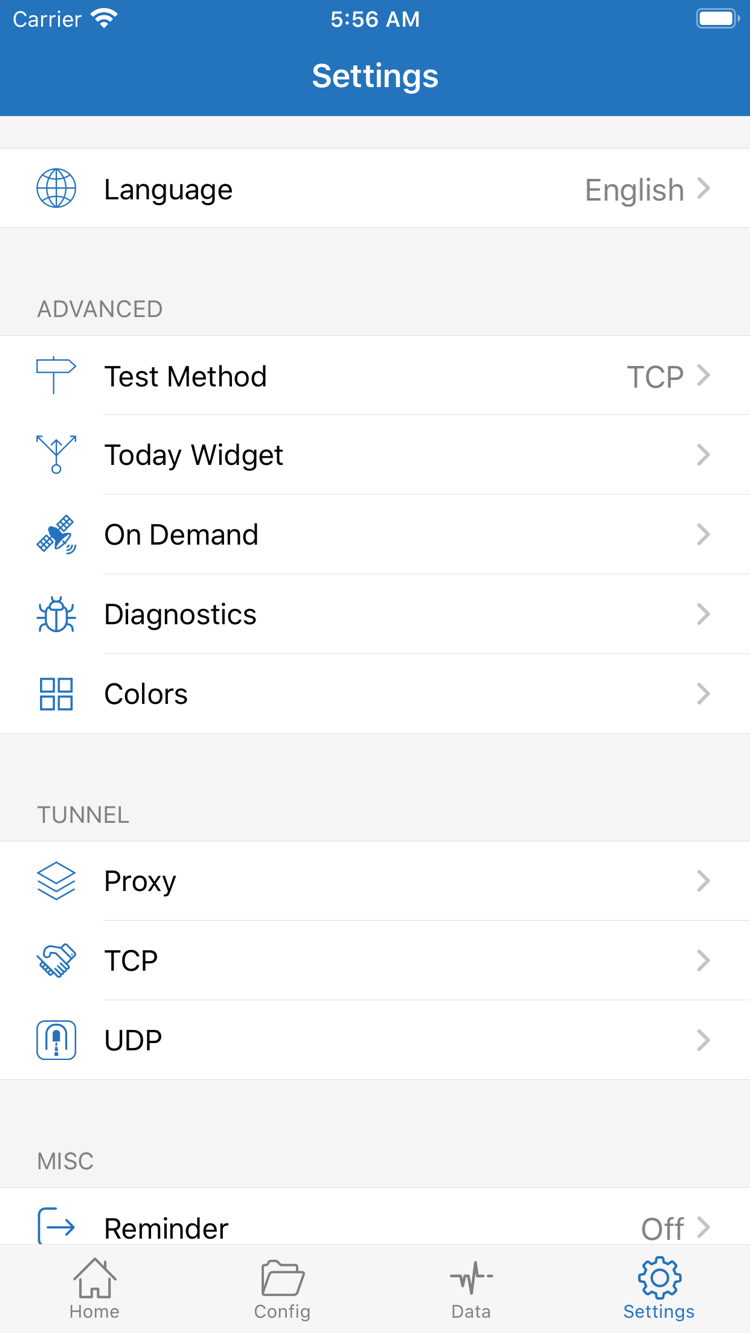
Settings: Troubleshoot based on where the failure occurs
First identify where the problem starts: no entries under SERVER indicates an import issue; an entry is present but the switch will not stay on means the connection is not established; a switch that stays on while a specific destination fails points to the test method, server reachability, or rules. Change one thing at a time, then repeat the same check. Otherwise, even if the result changes, you will not know which change caused it.
Subscription group is empty or parsing fails
Find the relevant group on Home and confirm it is not collapsed. Compare the original link from your service provider and check that you added it using Subscribe, that no parameters were truncated, and that the subscription has not been replaced or disabled. Once the link and service status are confirmed, update the group and wait for the update to finish before checking the list. If other groups work but this one remains empty, first check the status of this subscription with your service provider rather than changing global rules.
Connection is brief, or its status changes after locking the screen or switching networks
First check system VPN permission and try connecting again on the same network, so a switch between Wi-Fi and cellular is not mistaken for a server issue. If a manual connection stays active but its status changes after locking, waking, or changing networks, check whether On Demand is enabled in Settings and review its existing conditions. Note the current settings before retrying under the same conditions to determine whether an On Demand condition is taking effect or the manual connection itself will not stay active.
Test result and actual access do not match
Open Test Method in Settings and confirm whether the two results came from the same test method. Responses measured by different methods cannot be compared directly. If Diagnostics has a relevant entry, review the message from the time of the failure and determine whether the test got no response, a request for the destination domain failed, or the behavior differs only in Config mode. Return to Home and repeat the test for the same destination as described in Step 04; do not change the protocol, network, and rules at the same time.
To investigate further, describe the issue in a way that can be reproduced, such as “On the same Wi-Fi and server, Proxy works but Config does not.” Before sharing troubleshooting details, remove complete subscription URLs, QR codes, passwords, and server addresses that should not be public. See the server management manual for subscription updates, managing multiple groups, and backups; common issues with system permissions and network access are covered in Troubleshooting.